F.B. Purity – Testata, verificata http://www.fbpurity.com/install.htm
Nu trebuie sa modificati vreo setare decat daca doriti mai mult.
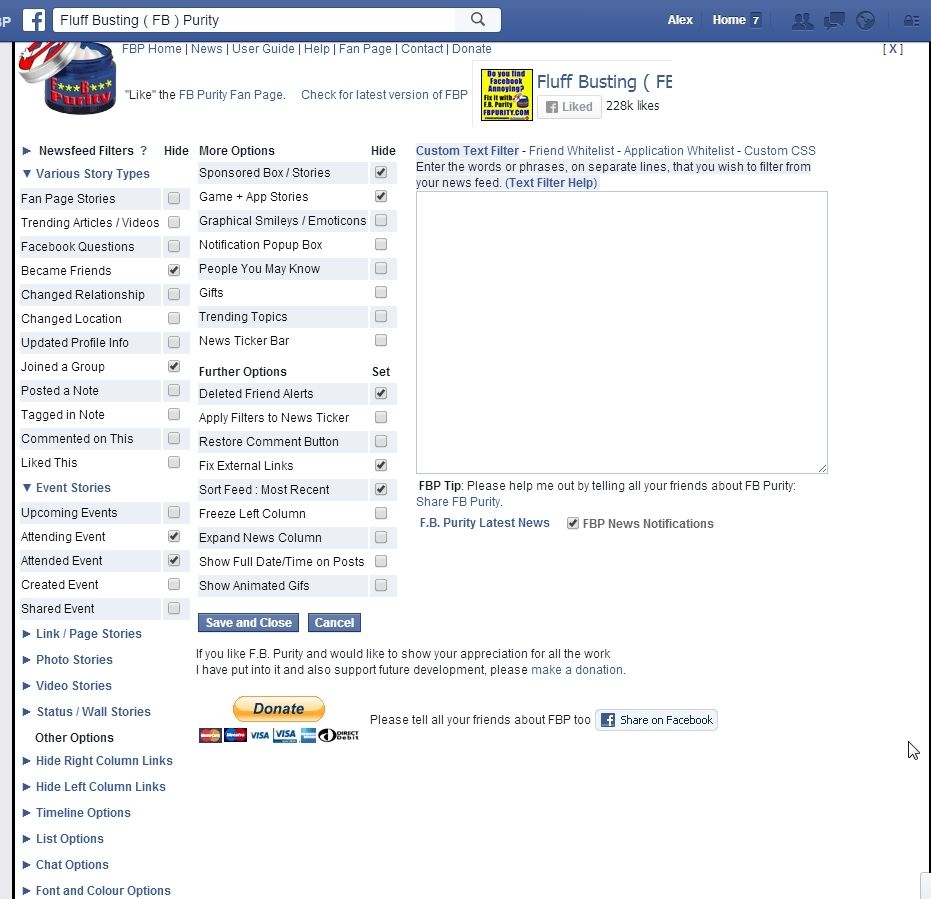
About F.B Purity
Fluff Busting (F.B.) Purity lets you Clean up and Customize Facebook. It has a myriad of features for eliminating the junk and clutter on Facebook.
F.B. Purity’s Features
F.B. Purity lets you hide the Suggested Posts / Related Posts / Sponsored Posts / Sponsored Stories / Upcoming Events / Games your Friends are playing / Games You May Like / Similar To / Related Articles / More Like / More From / Trending Topics etc
You know those posts in your newsfeed that you are not interested in seeing? FB Purity lets you hide all that stuff.
FBP gives you the option to turn off auto play videos, returning them to “Click to Play” instead. The option for this is under the “Video Stories” section under the Newsfeed Filters Heading on the FBP options screen.
FBP gives you the option to remove the Trending Topics box. The option for this is under the “More Options” Heading of the FBP options screen. One reason you might want to hide the Trending box would be if you wanted to avoid seeing Spoilers for your favourite TV Show, or Sporting event.
Lets you force Facebook to sort your newsfeed by “Most Recent” stories first
Although Facebook has an option to let you choose what order you want your newsfeed sorted in, it seems to keep “forgetting” the user’s preference. This option lets you force Facebook to always keep you on the “Most Recent” feed page.
*Update* And now Facebook keeps bumping old posts (that have new comments or likes on them) to the top, so to keep the posts in correct time order you also now need to tick the “hide liked this”, and “hide commented on this” filter options.
Another solution for getting the most recent feed in correct order is to use FBP’s Chronological Sort function which sorts the stories currently on the screen when you press the “R” key. When pressed all the posts should be sorted into their correct time order.
Custom Text Filter – Hide Posts by Keywords / Phrases
Using the Custom Text Filter, You can hide posts that feature specific words or phrases that you don’t want to see in your newsfeeds. This function can be used for hiding “spoilers” that people post about TV shows or Sports events. For instructions on how to do this, see the: Custom Text Filter Guide
Be alerted when any of your friends remove or delete you from their friends list
If for some reason you are removed from any of your friend’s friend lists, FBP’s built in tracker will detect it and display an alert on your screen telling you who unfriend-ed you. (If you miss the alert, you can press the “F” key to replay the alert.)
You can expand the width of the news column in the newsfeed with FB Purity.
You can do this by ticking the “Expand News Column” option, theres also an onscreen button to toggle this option at the end of the FB Purity info bar
Revert Bubble Chat back to the Old Style Chat Interface
If you do not like the new style “Bubble Chat” interface, you can turn this back to the old style chat interface via the option on the FBP options screen.
Hide Offline Friends in Chat
Fed up of seeing a mish mash of online and offline friends in chat? FBP has an option to only show the online friends in chat.
Hide Trending Topics / Hashtags
If you dont want to see the Trending Topics / Hashtags box, and the “is trending” news stories in your newsfeed, FBP lets you hide them.
Stops External Links and News links you click from being intercepted by Facebook
FBP has an option for fixing the news article links that redirect via Facebook applications, and instead lets you go directly to the news article, this means what you read wont show up in other peoples tickers or newsfeed, and you wont get hassled with the news organisations application page wanting you to add the application every time you click a news article link.
Stop the Automatic Tag Suggestions when you are typing
FBP has options for stopping Facebook’s irritating automatic tag suggestions that try and auto-complete what you are typing, the option is called Hide “Auto Tag Suggestions” and its under the “More Options” heading. Another similar option lets you turn off the popup suggestions that show up when you use the Search box at the top of the page. This option is titled “Hide Search Box Popup” and its under the “Top Nav Bar Options” heading.
Hide all Photos / Hide All Videos from the feed
As well as giving you options to hide the shared videos and shared photos, theres also an even stricter options of hiding “All Photos” or “All Videos” from the newsfeed
Hide the random images that show up on List pages (Friends and Interest Lists) and the Pages Feed page
To enable this option open the “List Options” section under the “Newsfeed Filters” heading, then tick the “hide random header images” option.
View Animated Gifs in the Facebook Newsfeed
FBP has an option to enable the viewing of animated GIFS in the newsfeed. If anyone posts a link to an animated gif on the newsfeed, FBP will convert it to an animated GIF
Hide comments that consist soley of Tagged User Names
On popular posts, you often see hundreds of comments that consist of just Tagged user names, FBP has a keyboard shortcut “Z” that when pressed hides all those types of comments, making it easier to find the type of comments you do want to read.
Hide the News Ticker / Hide the Chat Interface
F.B. Purity adds options to hide both the new FB Chat interface and also the “News Ticker” aka the “Happening Now” sidebar, which is the box of constantly scrolling news in the top righthand side corner of your page.
Hide the “Like Page” buttons that show up on shared items in the newsfeed
They are a bit of an eyesore, so now FBP has an option that lets you hide the “Like Page” buttons that show up with shared items in the feed
Freeze the left hand column of the newsfeed in position
FBP gives you an option to fix the left hand navbar in a fixed position even when you scroll the newsfeed down. Very useful indeed!
Change the Font, Font Size, Background Image and Background Colours
F.B. Purity now has a font chooser with 650 pre-defined fonts that you can choose from, it also has a font size feature, to access it, you just need to go into the F.B. Purity settings, by clicking the F.B Purity link above your Facebook homepage.
You can also choose a background image, that will be shown behind the facebook pages you view, and also what colour scheme or colors you want to view facebook with, you can enter either use the Colour Picker widget (if available for your browser) or enter any colour name or HTML/CSS colour code on FBP’s options screen, and then Facebook will be displayed in your chosen colors.
Hide Notifications Popup
If you get a lot of notifications the popup box in the bottom left corner can be quite distracting and can interrupt what you are doing, FB Purity has an option to turn those notifications off too.
Hide the “New Stories” popup button
If you are idle on Facebook for any length of time, an annoying little button pops up saying “New Stories”. FBP has an option to hide that button.
Hide Smileys / Emoticons
If you don’t like the graphical smileys aka emoticons and “stickers” that Facebook displays, you can hide them with FBP’s built in Emoticon hiding option
Application Whitelist
The application whitelist lets you specify particular applications, whose messages you *do* want to see on your homepage. The script comes with a default list of applications that will not be hidden by the F.B. Purity app filter.
This list includes the following applications: FB for Iphone, FB for Blackberry, FB for Palm, FB for Android, Tweetdeck, Digsby, Tumblr and Selective Twitter.
For instructions on how to add applications you *want* to see to the list, see the F.B. Purity Application Whitelist Guide
If you do want to see all application messages in your news feed, you can turn off the app/games filtering in your feed.
Extras Blacklist
By default the script hides the following “Extras” (though you can choose to see them if you wish):
- Liked (Became a Fan Of)
- Joined a Group
- Became a Friend of
- Is Attending an event
- Attended an Event
- Shared an event
- Your Memories
- Shared a Memory
Additional optional “Extras” that can also be hidden, but are shown by default are:
Facebook Questions (and answers), Created an event, Changed location (FB Places), Updated profile, Changed profile picture, Changed relationship, Commented on or likes status, Uploaded photo, Shared Photo, Tagged in, likes or commented on photo, Tagged in, likes or commented on album, Uploaded video, Tagged in video, Share a link, Commented on or likes link, Read an article, Trending articles, Posted a note, Tagged in note, Commented on wall, Commented on group wall, Commented on page wall, Commented on Event wall, Fan Page Stories (Stories from pages you have liked), Commented on “this”, Liked “this
If you would rather see one, some or all of these messages, You can edit the default list, to your taste. Instructions on how to do this are here:
F.B. Purity Extras Blacklist Guide
Hide the following from the right hand side of your Facebook Homepage
Suggestions (People you may know, Featured, Find Friends, Find More Friends, Friend Finder), Ads and Sponsored Stories, Promoted Posts in the Newsfeed / Facebook Offers (Ads), Get Connected (aka Connect with Friends), Pokes, Events, Birthdays, Friend Requests, Game and Application Requests, Recommended Pages, Suggested Groups
The script has the capability of hiding all the above boxes, to hide them, simply tick the corresponding boxes in the F.B Purity options screen.
Block Applications Directly From Your NewsFeed
F.B. Purity, as well as by default letting you hide the game and app posts from your feed, also adds “BA” (Block Application) links, beneath the “V” menu button at the top right of application posts in your news feed, which lets you completely block the application from getting any information about you, sending you notifications, or invites to add the application. N.B Facebook’s built in “V” (hide menu) button only lets you hide the application messages from your news feed, it does not stop invites or notifications, or stop the application from reading your profile data.
The “BA” button lets you block multiple applications at once, if there are multiple application messages on the screen, if you click the BA button, it will ask you if you want to block all the applications at the same time, if you say no, it will ask if you just want to block the app you clicked on.
Hide links in the Left Column, such as “Like Pages”, “Pages Feed”, “Games Feed” and “App Center”
FBP also gives you the option to hide links that you dont want to see in the Left hand column such as Pages Feed, Pages, Find Friends, Advert Manager, Music, Pokes, Places Editor, Interests, Like Pages, Games Feed,App Center, Create a Page, Create group, Events, Adverts Manager, Connect, Groups, Interests, Friends, Developer etc
Import and Export your F.B Purity Settings
You can export and import your FBP settings, so you can transfer your settings from browser to browser, or recover them after you have a browser crash etc
What is F.B. Purity?
Fluff Busting (FB) Purity is a web browser add-on that helps you to take control of your Facebook experience. It does this by letting you filter out the spam, such as ads, quizzes and games etc, and also the messages such as “x became a fan of y”, “x joined group y”, “x became friends with y”, “x is attending event y”. See the F.B. Purity features page for the full list of what FBP can do.
How much does F.B. Purity cost?
F.B. Purity is donationware, which means if you like the script / extension and it helps you out and you appreciate and respect the hard work put into this, you can thank me by making a donation.
Where Can I Download F.B. Purity?
You can download F.B. Purity here: Install F.B. Purity
Where can I find out the latest news about Fluff Busting (FB) Purity, including latest releases etc
If you want the latest news and information about the script beamed to your computer screen directly when its updated, “Like” the FB (Fluff Busting) Purity Fan Page, and I will keep you updated with news of the latest releases, bug fixes, tips and tricks etc. Though in order to make sure you get the updates, you should subscribe to the FB Purity News Interest List: that should make sure that posts from this page appear in your newsfeed.
Another option which makes it even more likely you will receive the news as it happens, as it actually gives you a notification whenever theres an important post about FB Purity. To enable notifications when I post an update, go to theFBP Fan Page and hover over the “Liked” button, then select “Get Notifications”. Alternatively You might like to subscribe to the Fluff Busting Purity News RSS feed, Fluff Busting Purity News, you can also subscribe to the news feed via email. I will also be making update announcements on the offical F.B. Purity Twitter account. If you want instant notification of updates, you can subscribe to F.B. Purity updates via SMS on the F.B. Purity Twitter page.
*UPDATE* The latest version of FB Purity has a new built in notification system. When there is new news on the FBP Fan page, a small red notification box will be displayed under the FBP link at the top of the facebook page along with the number of new posts.
Clicking the notification will take you to the FBP fan page, and the notification will go away. Alternatively you can click the “X” to dismiss the notification.
These notifications are important as the FBP Fan page has news about new releases of FBP, and any big changes that Facebook makes to break features of FBP, and any changes to FBP, such as new features, bugs, workarounds etc. If you don’t want to receive this information or don’t like these built in FBP news notifications, you can turn them off via the FBP options screen.
What is a Web Browser extension (also known as an add-on)?
A web browser extension is a program that extends and enhances the functionality of your web browser (the program you use to browse the web), and gives you extra functionality and or customization options on websites that you visit.
What is Greasemonkey?
Greasemonkey is an add-on on for the Firefox web browser (and certain other browsers too), that lets you alter the way websites are displayed to you in your browser. The way it works is you download scripts (small sets of custom instructions) for the sites you want to alter, once installed the script changes the page in some useful way, perhaps changing the layout or adding new features to the site, or even removing features you don’t like.
What Web Browsers are compatible with F.B. Purity?
F.B. Purity is compatible with Mozilla Firefox, Google Chrome, Safari, Opera and Maxthon. It should also work with compatible browsers, for example and Avant Browser are compatible with Chrome, so the Chrome version of the extension should work with those browsers.
Is F.B. Purity available for Internet Explorer?
No, for the reasons why, see the following article: using Internet Explorer is a massive security risk, it uses a non standard javascript implementation andvarious other reasons. If you want further proof Internet Explorer is bad,check this worrying graph 😉. The browsers that F.B. Purity work with are Firefox, Chrome, Opera and Safari. Why not try out a new web browser? You might just like it 🙂 N.B if you are stuck with I.E due to workplace restrictions on installing software, you could try using a “portable” version of Firefox, Chrome or Opera, that runs from a USB memory stick.*UPDATE* Microsoft have a new browser called “Microsoft Edge” coming out with the Windows 10 operating system, that will be more secure and once they have added the ability to use browser extensions to the browser, it will mean it will be more likely I will be able to develop a version of FBP for it.
Can I Hide the “Trending” Topics box from the right hand side of the newsfeed?
The latest version of FB Purity has a built in option for hiding the Trending Topics box, just tick the “Hide Trending Topics” option on the FBP options screen. Full instructions here.
What operating systems are compatible with F.B. Purity?
The operating system doesn’t really matter, whatever operating systems run the following web browsers: Firefox, Chrome, Opera, Safari and Maxthon will work fine with F.B. Purity. e.g Windows, Linux, Mac etc. Please note that F.B. Purity will not run on mobile / tablet browsers on Iphone or Android, or the IPad / Ipad2 / Ipad3 etc as they are not compatible.
How can i hide all posts in the newsfeed telling me what my friends have liked or commented on?
FBP has filter options for most different story types that show up in the newsfeed. There are separate options to hide “likes” based on what the person has liked, e.g there are options to hide “liked photos”, “liked videos”, “liked status” etc, those options are under their respective title heading, so to hide “liked photos”, open the “Photo Stories” section of the FBP options screen, etc. The same goes for hiding “comment” stories. A variation on this is the “liked this” and “commented on this” options, sometimes posts in the newsfeed have “liked this” or “commented on this” in the header of the post, where the type of post is not specified, so there are separate options for hiding those types of posts. P.S. If you are ever unsure of what an FBP option does, hover your mouse pointer over it, and it should present you with further information on that option.
Can I prevent my likes and comments from showing up in other peoples newsfeeds?
No, unfortunately this is not possible, the only way to stop that completely is to stop liking and commenting on things.
Can I disable autoplay videos from playing automatically in the Facebook newsfeed?
To disable the autoplay of videos in the newsfeed, open the “Video Stories” section of the FBP options screen, and click the link that says “Click here to disable Autoplay”. The link opens Facebook’s settings page, where FBP will attempt to turn autoplay off, if it is not successful, you can manually change the setting on that page yourself.
Will F.B. Purity be made available for the IPhone or Android or any other mobile devices?
Its a possibility for the future, but it will be an awful lot of work, and developing / maintaining and supporting the desktop version of FBP is already a crazy amount of work, and currently have no plans for a mobile version to announce at this time.
How do I access the F.B. Purity Options screen?
Once you have F.B. Purity installed, you can access the options screen by clicking the “FBP” or “F.B. Purity” links at the top of your facebook homepage (aka the newsfeed).
How can I hide the “News Ticker” bar? (the scrolling column of news in the right hand column)
Yes, just tick the option to hide “News Ticker” on the FBP settings screen and that will hide it. (Though facebook has a built in method for hiding it now, You can click the arrow at the top of the ticker to hide it)
How can I turn off / hide the Sponsored box and Sponsored Stories / Suggested Posts / More From / Related / Similar To Posts in the newsfeed (Adverts)?
Just tick the Hide Sponsored Box option on the F.B Purity options screen, this will also hide the Suggested Posts, and other Sponsored stories in the newsfeed. This setting also hides the ads on the timeline pages too.
How can I edit / customise the list of games and applications that F.B. Purity hides?
Theres a guide to editing the F.B. Purity application whitelist here : F.B. Purity Whitelist Guide. Or if you want to turn off application filtering entiredly, just tick the “hide application stories” option in the fbp settings screen.
How can I hide posts that feature specific words or phrases?
The Custom Text filter lets you hide posts that feature words or phrases that you specify. You can read how to use this feature here: Custom Text Filter Guide
In the Custom Text filter, is it possible to hide whole words only, eg hide any mentions of “hat” but not words containing the letters “hat” such as “what” or “that” etc?
Yes, in order to do this you need to use some special Regular Expression syntax. In this case, you need to use the word boundary signifier “\b”, you need to put it at the start and end of the whole word that you want to filter out. So in the case of this example you would put “\bhat\b” (without the quotes) into the Custom Text Filter box, and it should then only filter out any occurrences of the word “hat”.
How can I edit / customise the list of “extras” that F.B. Purity hides?
Instructions on customising the “Extra” stories that get hidden are here: F.B. Purity Extras guide
Is it possible to use wildcard search patterns In the Custom Text filter?
Yes, it is possible, you need to use “Regular Expressions” syntax. Examples: If you wanted to match anything that occurs between the words “this” and “program” you would use the following “regex” “this .* program”. If you wanted to hide any numeric variation of “added 12 photos to an album” you would use the following regular expression “added \d* photos to an album”. Google “Regular Expressions” to learn more about the syntax.
Can I hide or minimise the “Viewing Most Recent” box that shows up when you have selected to view the newsfeed sorted by most recent?
Yes, FBP has an option to force Facebook to always show you the most Recent feed, and this option also minimises the “Viewing Most Recent” box at the top of your newsfeed. If you have this option enabled but you still see the Top Stories page, try reloading your page, as that should fix it.
How can I turn off (hide) the Suggestions (aka Recommended Pages, Find Friends, Get Connected, Connect with Friends, Find More Friends, People to subscribe to) box?
Just tick the Hide “Sponsored box” option on the F.B Purity options screen.
Can I hide the newsfeed completely?
Yes! If you find the constant updates on the news feed a distraction and want the whole newsfeed gone, FBP has an option to do this, its under the “More Options” heading of the FBP options screen.
How can I hide the “People you may know” box on Facebook
Click for the guide to How to hide the People You may Know box on Facebook
Can I turn off the “Deleted Friend Alerts” that get shown when my friends delete me / unfriend from their friend lists?
Yes there is an option on the FBP options screen titled “Deleted Friend Alerts”, un-ticking that option turns it off.
Is it possible to show a Deleted Friends Alert again if I accidentally dismiss it before reading it properly?
Yes, if you click the “F” key shortly after the popup screen has gone away, the Deleted Friends Alert should popup again, so you can read it properly, alternatively, if you check the left column of your newsfeed, there will be a “deleted friends alert” link, highlighted with a pink background, clicking the link will also re-play the alert. Deleted Friends Alerts are automatically cleared an hour after popping up.
The deleted friend alerts are showing incorrect results, why is that?
Deleted friend alerts can be triggered by friends de-activating their account, in this situation you have not actually been unfriended, but that person will no longer show up in your friends list while the account is deactivated. They will be back in your list when the account is re-activated. If you have a very large number of friends, you may see quite a few of these alerts, due to the number of your friends who may temporarily be deactivating their accounts regularly. If you do repeatedly see these alerts and don’t want to see them any more, you can turn the “Deleted Friend Alerts” off via the FBP options screen. Other possible reasons, could be a Facebook glitch or browser malfunction. Deleted friend alerts can also be caused by a person converting their personal profile into a “Fan Page”.
Can I hide the “New Stories” button that pops up on the newsfeed screen?
The latest version of FB Purity has a built in option to hide this, its under the “More Options” heading, and titled “‘New Stories’ Popup Button”
FBP has an option to hide popup notifications, but I am still seeing them with this option enabled, whats going on?
FBP’s hide popup notifications option only works on the notifications that popup in the bottom left corner when you are actually on the Facebook website. The notifications that popup in the bottom right hand side of your browser whether you are on facebook or not can not be blocked by FBP, you need to turn those off in Facebook’s own settings page. I believe they are called “Push Notifications”
Can I use FB Purity to hide Facebook’s Memories feature that digs up old posts and puts them in the newsfeed?
There are 2 types of Memories posts that can show up in the Newsfeed. Your own “Memories” which can be hidden by adding the following text to the “Text Filter” box on the FBP options screen: “Your Memories on Facebook” (without the quotes). To filter out other people’s memories from the Newsfeed, put the following text into the “Text Filter” box: “Shared a memory” (without the quotes). Don’t forget to click the “Save & Close” button afterwards.
Facebook also has Memory Notifications that drop down from the Globe menu in the top nav bar. Facebook has a built in setting to turn the Memories Notifications off, go to On This Day then click the menu at the top right of the page to turn them off. Please note that this setting does not stop Memories posts from showing up in your Newsfeed, you need to use the Text Filter as mentioned previously for that.
If you install the latest version of FBP, it has built in filtering options for hiding Memories posts from the newsfeed, they are under the “Various Story Types” heading.
Can I use FB Purity to view Animated Gifs on Facebook?
Yes, FB Purity has an option called “Show Animated Gifs”. If this option is checked, it will convert any links to GIF files posted on Facebook into Animated Gifs. Please note, it is not possible to upload Animated Gifs to Facebook, you can only post links to Animated Gifs that are hosted on other websites.
Can I hide comments that just consist of Tagged Names?
Yes, FB Purity gives you a keyboard shortcut “Z”, which when pressed “Zaps” (temporarily hides) all name tag comments.
Facebook has started showing less links under the groups, interest lists and pages section in the left hand column, can FBP fix this?
No, thats not something that FBP can change. You can however go through the groups, pages, interest/friend lists that you want to see in the left column and click the “cogwheel” icon next to the group name and click “Add to favorites” that will put that link permanently in the left hand column.
Does F.B. Purity have or will it in the future have a functionality to disable the Photo Lightbox viewer / Theatre view Popup windows?
No, its easy to disable the Photo Lightbox / Theatre view yourself without any add-on at all, simply “right click” on any photo in the newsfeed, and then select “Open Link in New Window” or “Open link in new tab”. Another way to get rid of it is: If you have a three button mouse or a mouse with a scroll wheel, click the photo with the middle button / scroll wheel, that should open the photo without the lightbox in a new tab, though this may depend on your browser’s settings.
How can I hide the list suggestions box on friends list pages?
You can do this with a little CSS code snippet that you can find on the FBP CSS Page
How can I hide the Facebook Chat box?
You can hide Facebook Chat box / interface using FBP (N.B. It doesn’t log you out of chat or disable the chat, it just hides the interface) Simply tick the hide “Chat box” option on the FBP settings screen to hide it. Though facebook now has its own option to hide chat, you can access it via the cogwheel at the bottom of the chat sidebar.
Why is FB Purity hiding all my friends in Chat?
If you have FBP’s “hide offline friends” option selected, when you first open the chat window, it will appear blank, this is because it takes a while for facebook to show whether or not your friends are online. After Facebook lists the online friends, which may take a few seconds after opening the chat box, FBP can filter out the offline ones correctly. **UPDATE**: It seems like Facebook has changed the code for this, so if all your friends are being hidden in chat, and you have the “hide offline friends” option turned on, turn it off.
How can I revert the bubble chat back to the simple old style chat interface?
The latest version of FB Purity has an option to convert the new Bubble Chat back to the old style chat, just open the FBP options screen then tick the “hide Bubble Chat” option.
Can I hide the Offline or Mobile friends in Chat?
Yes you can hide both, FB Purity has 2 such options. 1 to hide offline friends, and the other hides offline and mobile friends in chat.
What happened to FB Purity’s Hide Offline friends in chat option?
Facebook broke the functionality of it, which meant it was hiding all friends not just offline friends, I’ve now managed to fix it in the latest version of FBP. Re-install for the fixed version. Please note the new “Hide offline + Mobile friends” option only works if the Facebook language is set to English.
Facebook has started forcing us to use the small chat window at the bottom of the screen when sending messages, can I go back to the old method for sending messages?
FB Purity has an option called “Full Screen Chat” which when enabled, will let you open all chat messages in the full Screen messaging system (aka the Inbox) instead of opening the small chat tab windows at the bottom of the screen.
Can I stop group posts from showing up in my newsfeed?
Yes, just tick the Hide “wrote on wall” option. This hides posts to groups, posts to events, and user to user timeline posts from the newsfeed.
How can I hide YouTube videos from my news feeds?
The latest version of FB Purity, has a built in filter for hiding YouTube videos. Its under the “Newsfeed Filters” / “Video Stories” section of the FBP options screen.
Why are YouTube videos or twitter posts or some other type of posts being hidden from my timeline / newsfeed?
If you have the hide “Apps & Games” option ticked (under the “Timeline Options” heading), it will hide any posts created by Facebook apps, so if your post was “via Twitter” or “via Youtube” or via some other app that signifies it was posted by a Facebook app, and that will cause it to be hidden on the Timeline (aka your profile page). FBP does not however hide your own app posts in the Newsfeed (this is a separate page to the Timeline though some people get them mixed up), no matter what setting you have chosen. Facebook has an algorithm to determine whether something you post yourself shows up in the Newsfeed or not, you can test this by disabling FBP and seeing if your post is showing in the newsfeed or not. If its not there when FBP is disabled, then its clearly not FBP hiding it.
How can I hide the “Similar to” / “Related Articles” and “More from” boxes that pop up after I like a post from a “Fan Page” in the newsfeed
In the latest version of FB Purity, if you have the Hide Sponsored Box option ticked, along with the ads, FBP will also hide those popup boxes.
Can I hide the “Pages Feed”, “Games Feed”, “Likes Pages” or the “App Center”, or any of the other Links in the left hand column?
Yes you can, the latest version of FBP has built in options for hiding most of these links. Look for the “Hide Links in Left Column” section of the FBP options screen.
Can I hide the Recommended Games box in the right hand column?
Yes, ticking the “Hide Game / App Requests” option under the Hide Links in Right Hand Column heading, should also hide the Recommended Games box. Its also worth opening the chat sidebar options, by clicking the cogwheel icon at the bottom of the chat sidebar on the right hand side of your facebook page and turning on the “Hide Games” option there, as that should help hiding games in the right hand column too.
Can I hide the “Add friends to see more stories” box at the bottom of the newsfeed
You could hide it with Custom CSS if you can figure it out, though the code for these types of boxes tends to change quite regularly, also once its hidden with CSS you would in future be confused as to why no more posts are loading if the box is there but hidden, and you would most likely blame FBP for it. The best solution seems to to be just refresh the page, as it should, in theory, go away after refreshing the page.
Can Facebook uninstall FB Purity?
No they can’t, its simply not possible. If you are using Firefox and you think FB Purity has been uninstalled, read this: Sometimes if you click a facebook link when in facebook and it opens in a new tab, FBP will not load in that tab, however if you notice FBP has not loaded, if you just refresh/reload the page, FBP will load ok again. This issue is caused by the GM script compiler I’musing that generates the Firefox extension, I have reported the bug to the author of the compiler and am waiting for him to fix it. a workaround is, if you want to open a facebook link in a new tab, to right click the link then select open in new tab, or else middle click the link if your mouse has 3 buttons. Another option is to use the Greasemonkey version of FB Purity instead of the extension version, as it should not have this bug. You can get that version from the Firefox section of the Install page of the FB Purity website. If you are not using Firefox, its possible that there is an error in FB Purity that is stopping it from loading. Please follow the troubleshooting guide below for information on how to report a bug.
FBP doesn’t have an option to hide the “Pages and Public Figures” link in the left column, why is this?
This is because the link is different for each person, in order to hide it you need to use some Custom CSS, click for a short tutorial on how to use Custom CSS to hide elements on the page
Can I add Custom CSS rules to Facebook using F.B. Purity?
Yes, you can add Custom CSS rules, so you can style Facebook the way you like it, more info and lots of CSS examples here: Custom CSS
Can I filter out hashtags (hyperlinked words beginning with the “#” character) using the Custom Text Filter?
Sorry its not currently possible to filter out hashtags, due to a strange text encoding issue, which I’mlooking into. If you remove the hash from the filter, eg say you want to filter out the hashtag “#facebooksucks” you should currently just put the text “facebooksucks” without the hash in front of it and without the quotes, and it should filter ok.
Is it possible to turn off FBP’s application / games filtering?
Yes, you can stop FBP from filtering game and application posts, to do this, untick the hide “Game + App Stories” checkbox on the F.B. Purity options screen.
Can I filter out “Spoilers” using FB Purity?
Yes, you can. One place spoilers may show up is in the “Trending” box, which shows up to the right of the Newsfeed. You can turn the Trending Box off by ticking the Hide Trending Box option. Another place spoilers may show up is in the Newsfeed itself, posted either by “Fan Pages” or your friends. You can filter out Spoilers in the newsfeed by adding the name of the Sporting Event or TV Show etc, that you don’t want to know the latest happenings about until you actually watch it yourself, to the Custom Text Filter box. For example, say you didnt want to hear what happened in the latest episode of “Game of Thrones” you could put the text Game of Thrones into the Custom Text Filter box, and FB Purity will filter out any posts in the newsfeed that contain the text “Game of Thrones”.
Why are my Games Feed and Apps and Games-Friend Activity feeds blank after installing F.B. Purity?
Its because by default F.B. Purity filters out all game and application posts. If you want to see those posts, you can turn off the application/game filtering, to do this, untick the hide “Game & App Stories” checkbox on the F.B. Purity options screen.
The “People you may know” box is not being hidden even though I have the FBP option to hide it ticked, what can I do?
Make sure you also tick the hide “Sponsored Box” option as well, as that should hide some of the “People you may know” boxes as well. However I have been receiving reports that even this may not stop the box. Facebook are currently trying to make it very difficult to block their annoyances. Stay tuned for more info.
Can I hide “Today’s Birthdays” from showing up in my newsfeed?
Yes you can, simply put the text “Today’s Birthdays” (without the surrounding double quotes) into FBP’s Custom Text Filter box.
Can I hide the application links, such as “Music, Pokes, Questions, Games Feed, Pages Feed etc” under the “Apps and Games” heading in the left hand column of the homepage?
Yes, see the “Hide links in left hand columnn” section of the FB Purity Options screen, where you can choose to hide those links.
Is there an option to set “Most Recent” as the default news feed, in order to get your stories in chronological order, and hide the “top news” stories?
Yes F.B. Purity does have an option to let you force Facebook to sort your newsfeed by “Most Recent”, which is necessary because Facebook seems to keep forgetting the users preference. The option is titled “Sort Feed : Most Recent” and its under the “Further Options” heading.
*Update* Even though with this option enabled FBP sends you to Facebook’s Most Recent feed, Facebook are still showing the stories out of order, you should be able to fix this by ticking the “Hide commented on this” and “Hide liked this” options under the “Various Story Types” header on the FBP options screen. FB Purity also has a chronological sort function, that you can run if you see any posts that are not in the correct order, to activate the sort function, just press the “R” key on your keyboard while you are viewing the Newsfeed, and your feed will be re-sorted into correct Time order.
Can I use FB Purity to filter out all foreign language posts from my newsfeed?
Yes, you can as long as the foreign language post has the “See Translation” link (or the equivalent in whichever language you have facebook set to, you can put the text See Translation into the Custom Text Filter box, and it will filter out all foreign language posts from your newsfeed.
Can I turn off Facebook’s notification sounds?
Facebook has a built in option for turning off the notification sounds, you can access it here.
How can I turn off / hide / filter Facebook Questions posts from my news feed?
You can hide Facebook Questions stories from showing up in your newsfeeds by ticking the “Hide Facebook Questions” option on the F.B. Purity options screen. (Please note if you don’t have your Facebook interface set to English, it wont work, and you will either have to set the interface to English or else put your own Custom Text into the Custom Text Filter to filter these and other “extras” out.)
Why is the left column / left panel of the newsfeed stuck/frozen?
FBP has an option for making the left hand nav bar stick where it is, so you can scroll the newsfeed but the left hand nav bar will stay where it is. This may cause a problem for people with smaller screens as some of the nav links will be off screen and you wont be able to see them, the way to remedy this is either to hide the links in the left column that you don’t want to see, using the “Hide links in left column” options, to make the left hand column shorter, or else simply un-tick the “Freeze left column” option on the FBP options screen.
Why isn’t the hide sponsored box option hiding the ads?
Check that you have the latest version of FBP installed, as Facebook often update the code for the ads section, which means F.B. Purity needs to be updated to hide the ads again, also check the FBP fan page for any news as the CSS of the page may have changed. If neither of those works, and the ads say “Ads not by facebook” or something similar, its possible that you have installed a sneaky program known as “Adware” or “Malware” that inserts adverts into web pages that you view. To get rid of the ads, you should run an Anti Malware scanner, such as Super AntiSpyware, or MalwareBytes Antimalware.
Why doesn’t the hide Chat box feature work?
Facebook now has it’s own built in option for hiding the Chat Interface. To access it you need to click the “cogwheel” button at the very bottom of the chat sidebar panel to open the chat options, one of those options is to hide the chat interface. Also, If you don’t want the small chat tabs to open up at the bottom of your facebook screen whenever anyone sends you a message, you need to tick the “Full Screen Chat” option, under Chat options on the FBP options screen.
Can I disable or remove the poke feature of facebook
You cant disable it or remove the poke feature or stop people from poking you on facebook. You can delete invdividual pokes by clicking the “x” next to them, but if you do that it means that person can then poke you again. The best thing to do is to ignore the pokes, as if you don’t poke back or delete the poke, that person cannot poke you again. The problem with this is Facebook do not give you a way to hide the poke box on the right hand side of the screen. Luckily F.B. purity has an option to do this, look under the “Hide links in right hand column” section of the FBP options screen, for the hide Pokes option
Can I use FB Purity to remove / hide “Stickers” and “Emoticons” in chat / messaging?
Yes, FB Purity has an option to hide all emoticons and stickers on Facebook.
How can I get rid of the Scoreboard showing sports scores in the right hand column?
The scoreboard should have an “X” on it, clicking it should hide or minimise the scoreboard.
Why do some elements of the page (such as graphs on “Page Insights”) become hidden when I set the background colour in the fbp options?
If you set the background colour to be slightly transparent, using the following CSS colour function “rgba(225,0,0,0.5)” (without the quotes) in place of a colour name, in the background colour box, the elements should no longer be hidden. the way the colour function works is the first 3 numbers are the red, green and blue components, and the last number is the transparency value, which has a range from zero to one, 0 being completely transparent and 1 being completely solid.
How can I set a background image for Facebook?
The easiest way to do this, is to go to any image on Facebook (or upload the image you want to use to Facebook) then look for the “Set Image as Background” link (it will either be under the photo or to the right of it, depending on which image viewing mode you are in) and click it. To remove a background image, just open the FBP options screen and un-tick the “Set” box next to the background image option, then click “Save & Close“.
If I set a background image with FB Purity, or change the colours or fonts can other people view it too when they visit my profile/timeline page?
No, FBP only affects what you see in your own web browser.
What should I do if I accidentally set the background colour and the font colour to the same color, and can no longer see any text?
Locate where the FBP link, for opening the options screen, would normally be in the top nav bar next to right of the home link, and click it, when your mouse is over the link, it should display the version number of the currently installed version of FBP. On the FBP Options screen, simply un-tick the two checkboxes next to where the colour options for font and background are, and then click the “Save and close” button. Failing that, “right click” anywhere on the page and select “Inspect Element” then click the “Console” tab, then enter the following command into the Console:document.getElementById('fbpfreestyler').textContent=''That will temporarily reset FBPs style and Custom CSS data, allowing you to see the page again.
If I make a mistake with the Custom CSS or FBP’s colour and or background image options and can no longer see the page clearly to open the FBP options so i can reset my changes, what should I do?
Right click anywhere on the page and select “Inspect Element” then click the “Console” tab and enter the following line of codedocument.getElementById('fbpfreestyler').textContent=''that will temporarily reset FBP’s style and Custom CSS data, allowing you to see the page again and open the FBP options screen again, so you can change your settings back.
Can I hide Sponsored Stories and Facebook Offers from my news feed?
Yes you can, by default F.B. Purity hides all Sponsored stories and “Offers” stories such as “Claimed an Offer” or “Posted an Offer” from your newsfeed, this because they are basically ads, if you don’t want them hidden, un-tick the “Hide Sponsored Box” option.
Can I hide “Games your friends are playing” / “Games You May Like” stories from showing up in my Facebook newsfeed?
Yes the latest version of FB Purity will hide those story types from showing in your newsfeed, if you have the hide “Apps & Games” option ticked. (If this is not working for you try putting the text “Games your friends are playing” into FBP’s Custom Text filter (without the quotes).
Can I hide “Friendship Anniversary” aka “Friends with Person Z for X years” type posts, where people make a post showing how long they have been friends with someone?
Yes you can, put the following text into FBP’s Text Filter box:Friends with .* on Facebook for \d+ Years.*See Friendship
Can I hide “Upcoming Events” from showing up in my Facebook newsfeed?
Yes the latest version of FB Purity has an option for hiding Upcoming Events, its under the Events heading in the Newsfeed filters section.
How Can I hide “Suggested Events” from showing up in my events list page?
You can hide “Suggested Events” from your events list page, using facebooks built in controls, by clicking the “cog wheel” next to where it says “Today” at the top right of the events list page, then select “Settings” then tick the “hide suggested events” option
Is it possible to block posts from a Facebook Page / Facebook Group / Facebook Event from showing up in my newsfeed?
Yes, you can use the Custom Text Filter to achieve this. Just put the name of the Page / Group or Event into FBP’s Custom Text Filter, and FBP will filter out any posts from that entity
Can I hide the new “Like Suggestions” Bar that shows up after I click the like button on a Facebook Page?
Yes the latest version of FB Purity will hide the “Like Suggestions” Bar, if you have the “hide sponsored box” option ticked.
Can I hide the “Page Suggestions” Bar that shows up at the top of the Pages Feed?
Yes, see the Custom CSS page for instructions on how to do that.
I haven’t chosen to hide the ticker, but its not showing, whats going on?
Facebook has a built in option for hiding the Ticker aka sidebar, so check you haven’t done that first. Another possibility is if you have the page zoomed in too much using the browser zoom function, or you have set your font size too large in FBP, it might push the ticker off the screen, as it only shows up when there is enough space for it. Solution is to unzoom your browser window, and/or reduce the font size.
Does F.B. Purity’s feed filtering functionality work on Groups pages?
No, F.B. Purity does not currently work on Group’s pages, maybe one day it will, but it will be a lot of work to add it, so currently no, it doesn’t. You can however use Custom CSS that will affect Group pages, if you understand how to use CSS that is.
Is it possible to filter out image posts based on the contents of the image?
No, sorry, this is not technically possible at present.
Is FB Purity compatible with Seamonkey?
Yes, the current Firefox add-on version of F.B. Purity should be compatible with Seamonkey.
Can I change the colour of the F.B. purity Info Bar?
Yes, you can, using the Custom CSS box. Copy and paste the following into the Custom CSS box:#fbpurityinfobar {background-color:lightyellow !important}you can change the colour to any valid HTML/CSS colour code you like.
Can I disable / delete / deactivate / turn off the Facebook Timeline feature?
You can’t remove Timeline from your account, but you can however view Timeline pages in a less confusing single column timeline layout. To activate the single column layout, just click the “TL” button next to the search box at the top of the page. Please note that on personal Timeline pages, the main stories are now in a single column so the single column function is not needed, and doesn’t work there. It does however still work on “Fan Pages” where they still have the stories in 2 columns.
*UPDATE* Facebook have now seen the light and they’ve re-designed Timeline pages so all the news stories are in a single column.
Can I install FB Purity on the Maxthon browser?
Yes, you can. The Maxthon version of the FB Purity browser extension, is now available you can access it via the main FB Purity Install Page
How can I Export and Import my FBP settings data?
If you click the “Export Settings” link at the bottom of the FBP Options screen, a text box will appear with your FBP settings data inside. To export the data, simply select and copy the text in the box and save it to a text file or document. When you want to Import your settings, click the “Import Settings” link at the bottom of the FBP Options screen and a dialog box will pop up, just paste the FBP settings data you have previously saved into the box and click OK, thats it. This feature is cross browser compatible, so you can copy settings from one browser to another.
How can I help spread the word about F.B. Purity?
You can suggest F.B. Purity to your all your Facebook friends by posting about this page to your stream via the Share button:
 Share on Facebook
You can also let the world know about F.B. Purity, by posting to the following networks
![[Post to Twitter]](http://twitter-badges.s3.amazonaws.com/t_mini-b.png) Share on Twitter
Share on Twitter  Stumble It
How can I unblock an application once its been blocked via the “BA” (Block Application) button?
If you used the “block app” button, it means the application has been placed on your blocked applications list, which you can view and edit by going to your privacy settings page here: http://www.facebook.com/settings/?tab=privacythen clicking the “Edit your lists” link under the “Block Lists” heading at the bottom of the page. If you used Facebook’s Hide button to “hide” the application you need to go to the “Top News” page, then click the “Edit Options” link at the bottom of the page, your list of applications that you have “hidden” will be displayed there, and you can unhide them from there.
[Total: 1 Average: 5/5]
You must sign to vote
Facebook – Notificare cand un prieten te scoate din lista sa etc – Cea mai buna extensie Facebook pentru browsere reviewed by ZMEU.NET on Saturday, 28 November, 2015 rated 4.9 of 5
Comments
comments


